Learn how to choose the right monitor by comparing screen size, resolution, panel types, refresh rates, connectivity, and essential features.
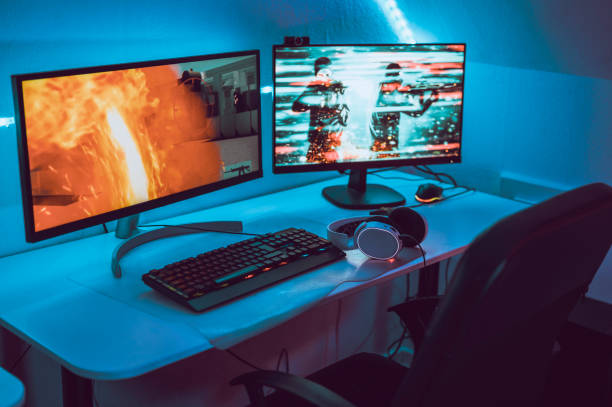
A monitor is an essential part of any computer setup, whether you use your system for studying, office work, gaming, programming, or creative projects. However, choosing the right display involves more than comparing screen sizes and prices.
Different monitors offer different resolutions, panel technologies, refresh rates, and connectivity options. Understanding these specifications can help you find a display that suits your requirements, workspace, and budget.
What Is a Monitor?
A monitor is an output device that displays visual information generated by a computer, laptop, or other connected device. It allows users to interact with applications, view documents, edit images, watch videos, and play games.
Modern monitors use technologies such as LCD (Liquid Crystal Display) and OLED (Organic Light-Emitting Diode). Each technology offers different characteristics in terms of brightness, contrast, colour reproduction, and power consumption.
How to Choose the Right Display
Before purchasing a monitor, consider the following factors.
1. Screen Size and Resolution
Screen size, measured diagonally in inches, determines how much physical display space you have. Common options include 24-inch, 27-inch, and 32-inch monitors.
Resolution refers to the number of pixels displayed on the screen. Higher resolutions generally produce sharper images and more detailed visuals.
Common resolutions include:
- Full HD (1920 × 1080): Suitable for everyday computing, studying, and general office work.
- QHD (2560 × 1440): Offers more workspace and sharper visuals, particularly on 27-inch displays.
- 4K UHD (3840 × 2160): Provides greater detail for content creation, professional work, and high-resolution entertainment.
Consider both screen size and resolution together. A larger screen does not automatically mean a sharper image.
2. Understand Monitor Panel Types
Panel technology affects colour accuracy, contrast, viewing angles, and response times.
The most common options include:
- IPS (In-Plane Switching): Offers wide viewing angles and generally consistent colour reproduction. It is suitable for office work, design, and general productivity.
- VA (Vertical Alignment): Typically provides higher contrast and deeper blacks than conventional IPS panels, making it useful for movies and darker environments.
- OLED: Uses self-emissive pixels, allowing individual pixels to switch off completely. This produces deep blacks, high contrast, and fast pixel response times.
Your choice should depend on whether you prioritise colour accuracy, contrast, gaming performance, or affordability.
3. Check the Refresh Rate
Refresh rate, measured in hertz (Hz), indicates how many times a monitor updates its image per second.
A 60Hz monitor refreshes its image 60 times per second, while a 144Hz monitor can refresh it 144 times per second.
For everyday browsing, studying, and office tasks, 60Hz or higher can be sufficient. Gamers and users who frequently work with fast-moving visuals may benefit from 120Hz, 144Hz, or higher refresh rates.
However, your computer’s graphics hardware and the connection must also support the desired resolution and refresh rate.
4. Consider Connectivity Options
Check the available ports before purchasing a monitor. Common connection options include:
- HDMI: Widely used with computers, gaming consoles, and other multimedia devices.
- DisplayPort: Commonly used for PC displays, particularly in higher-resolution and high-refresh-rate setups.
- USB-C: Can support video, data transfer, and power delivery through one cable when both devices support the required features.
Also consider whether you need USB hubs, audio output, or built-in speakers.
5. Look for Ergonomic Features
A monitor should provide a comfortable viewing experience during extended use.
Consider features such as height adjustment, tilt, swivel, and pivot support. VESA mounting compatibility is also useful if you plan to attach the display to a monitor arm or wall mount.
An adjustable stand can help position the screen at a comfortable viewing height and reduce unnecessary neck movement.
6. Evaluate HDR and Colour Accuracy
High Dynamic Range (HDR) can improve the range of brightness and contrast in supported content. However, an HDR label alone does not guarantee a good HDR experience.
Look for recognised certifications such as VESA DisplayHDR and consider the monitor’s brightness, contrast performance, and colour capabilities.
For photographers, designers, and video editors, colour gamut coverage and factory calibration may be more important than gaming-focused specifications.
Which Monitor Should You Choose?
Your ideal monitor depends on how you plan to use it.
- Students and office users: A 24-inch or 27-inch Full HD or QHD IPS monitor is a practical starting point.
- Programmers and professionals: Consider a 27-inch QHD or 4K display with an adjustable stand and comfortable viewing features.
- Gamers: Prioritise refresh rate, response time, adaptive sync support, and compatibility with your graphics hardware.
- Content creators: Look for accurate colour reproduction, suitable colour gamut coverage, and a resolution that supports your workflow.
Conclusion
Choosing the right monitor requires balancing screen size, resolution, panel technology, refresh rate, connectivity, and ergonomics.
Instead of paying for specifications you may never use, identify your primary needs and select a display that supports your daily activities. A carefully chosen monitor can improve productivity, visual comfort, and your overall computing experience.
External Sources/Links
The following authoritative resources support the technical explanations and provide additional information for readers.
1. Microsoft – Change Your Screen Resolution and Layout: Explains display resolution and scaling in Windows.
2. Microsoft – Change the Refresh Rate on Your Monitor: Explains refresh rates, supported display settings, and variable refresh rate.
3. VESA – Certified DisplayHDR: Official information about HDR certification and display performance requirements.
4. HDMI Forum – HDMI Specifications: Provides official information about HDMI capabilities, resolutions, refresh rates, and supported features.
FAQs
1. What is the best monitor size for everyday use?
A 24-inch or 27-inch monitor is a practical choice for everyday computing, studying, and office work. The ideal size depends on your desk space, viewing distance, and preferred resolution.
2. Is a 144Hz monitor better than a 60Hz monitor?
A 144Hz monitor can display motion more smoothly than a 60Hz monitor. It is particularly useful for gaming and fast-moving content, although everyday office tasks generally do not require such a high refresh rate.
3. Which monitor panel is better: IPS, VA, or OLED?
IPS is suitable for wide viewing angles and consistent colours, VA generally offers higher contrast, and OLED provides deep blacks and excellent contrast. The right option depends on your priorities and budget.