Learn how to secure your Google Account step by step with 2-Step Verification, passkeys, recovery options, Security Checkup, and app permissions.
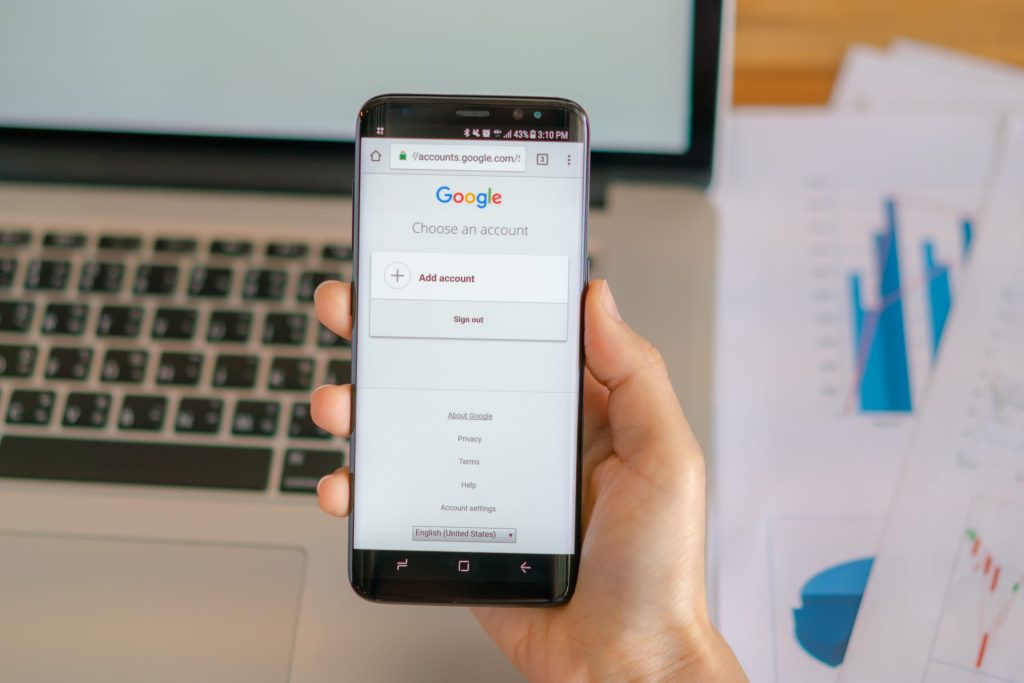
Think about how much of your digital life is connected to your Google account. Gmail, Google Drive, Photos, YouTube, contacts, and other services may all be tied to the same login.
That makes your Google account worth protecting. The good news is that you don’t need to be a cybersecurity expert to improve its security. A few simple settings can go a long way.
How to Secure Your Google Account Step by Step
1. Start with Google Security Checkup
If you don’t know where to begin, start with Google Security Checkup. It gives you a quick look at important security settings and can point out anything that needs attention.
Check the devices signed in to your account, recent security activity, recovery options, and other recommendations. If something looks unfamiliar, don’t ignore it.
It’s also worth returning to Security Checkup from time to time rather than treating it as a one-time task.
2. Turn on 2-Step Verification
A password by itself isn’t ideal protection for an important account.
2-Step Verification (2SV) adds another step when you sign in. Depending on your setup, Google may ask you to approve a sign-in on your phone, enter a verification code, use a passkey, or use another authentication method.
To turn it on:
-
Open your Google Account.
-
Select Security & sign-in.
-
Find How you sign in to Google.
-
Select 2-Step Verification and follow the instructions.
This means someone who gets your password still has another security layer to get through.
3. Keep your recovery information updated
Your recovery phone number and email address can become extremely important if you lose access to your account.
Make sure the information on your Google account is current and belongs to you. If you change your phone number or stop using an old email address, update your recovery details as well.
Don’t wait until you’re locked out to discover that your recovery information is outdated.
4. Consider using a passkey
If you’ve seen the term passkey but aren’t sure what it means, think of it as a modern alternative to passwords.
Passkeys can use your device’s fingerprint, face recognition, or screen lock to verify you. They’re also designed to resist common phishing attacks because the credential is tied to the legitimate website or service.
If your device supports passkeys, adding one to your Google account is worth considering.
5. Remove apps you no longer use
You may have connected your Google account to apps and websites over the years without giving them much thought.
Take a look at the third-party apps that have access to your account. If you no longer use an app or don’t recognize it, consider removing its access.
Before connecting a new service, also check what permissions it is requesting. An app shouldn’t get access to information it doesn’t genuinely need.
6. Use a unique password
If you’re using a password for your Google account, make sure it isn’t the same password you use elsewhere.
Password reuse can create a chain reaction. If another website suffers a data breach and your reused password becomes available, attackers may try the same credentials on your Google account.
A password manager can make this easier by creating and storing unique passwords for you.
7. Watch for phishing
Even strong account settings can’t replace basic caution.
Be suspicious of emails, messages, or websites that ask you to sign in urgently, claim there’s a problem with your account, or ask for your password or verification code.
When in doubt, don’t use the link in the message. Open your browser and go directly to the official Google website instead.
Why Your Google Account Matters
Your Google account may be connected to a surprisingly large part of your online life. Someone who gains access could potentially reach emails, files, photos, contacts, or other connected services.
That’s why account security isn’t just about protecting one password. It’s about adding several layers of protection and knowing what is happening on your account.
Conclusion
You don’t need to change dozens of settings to secure your Google account step by step. Start with Security Checkup, turn on 2-Step Verification, keep your recovery information current, and consider adding a passkey.
Then remove unnecessary third-party access, use a unique password, and stay alert for phishing attempts.
A few minutes spent securing your account today can save you a much bigger headache later.
External Sources/Links
-
— Official guidance for reviewing Google account security.
-
— Official setup instructions and authentication options.
-
— Guidance for maintaining recovery email and phone information.
-
— Review and manage third-party access.
FAQs
How can I secure my Google account?
Start with Security Checkup, enable 2-Step Verification, update recovery information, use a unique password or passkey, and review connected apps.
Is 2-Step Verification enough to protect a Google account?
It provides an important additional layer of security, but you should also use a strong unique password, keep recovery information updated, and watch for phishing.
Are Google passkeys safe?
Passkeys are designed to resist common phishing techniques and use your device’s authentication, such as a fingerprint, face scan, or screen lock.